Green Tick on WhatsApp: How to Get the Verified Badge (2026)
The WhatsApp green tick is now a blue badge. Both routes (official business account on the API, Meta Verified in the app): conditions, steps and prices.
 Nicolas ProvostMay 19, 2026 · 15 min read
Summarize this article with an AI
 ChatGPT
 Claude
Table of contents (11)
Key takeaways
- The WhatsApp green tick is now a blue verified badge, and it still means that Meta has verified who owns the account.
- On the API, you request an official business account in WhatsApp Manager after 30 days on the platform, with an approved display name and two-step verification.
- In the WhatsApp Business app, the badge comes with Meta Verified, a paid monthly subscription offered only to some businesses and countries, listed by Meta from $14.99 a month.
- The badge does not raise messaging limits, but on the API it shows your store name instead of your number in every order update and cart reminder.
The WhatsApp green tick is now a blue verified badge: Meta's documentation describes a blue checkmark next to the business name, and no longer mentions a green one. You get it in one of two ways. A number on the WhatsApp Business Platform (the API) requests an official business account in WhatsApp Manager, and a number on the WhatsApp Business app subscribes to Meta Verified, a paid plan, where WhatsApp offers it.
Everything below comes from Meta's and WhatsApp's own pages, read on October 24, 2026. Where Meta gives no figure (review time for the API request, approval odds), this guide gives none either.
Is the WhatsApp green tick now a blue tick?
Yes. Meta for Developers states that Official Business Account numbers have a blue checkmark beside their name in the contacts view (Official Business Accounts, updated September 19, 2026). WhatsApp's Help Center calls it a verified badge, "also known as a blue tick or blue checkmark" (How to subscribe to Meta Verified for Business on WhatsApp).
What the badge means has not changed. WhatsApp says it shows that Meta has verified the account, based on its activity across Meta technologies or on information and documents the business provided (About verified business accounts). If your account already has a badge, WhatsApp says you keep your verified status and no action is required (About Meta Verified for Business on WhatsApp).
What is the difference between the badge, Meta Verified, an official business account and business verification?
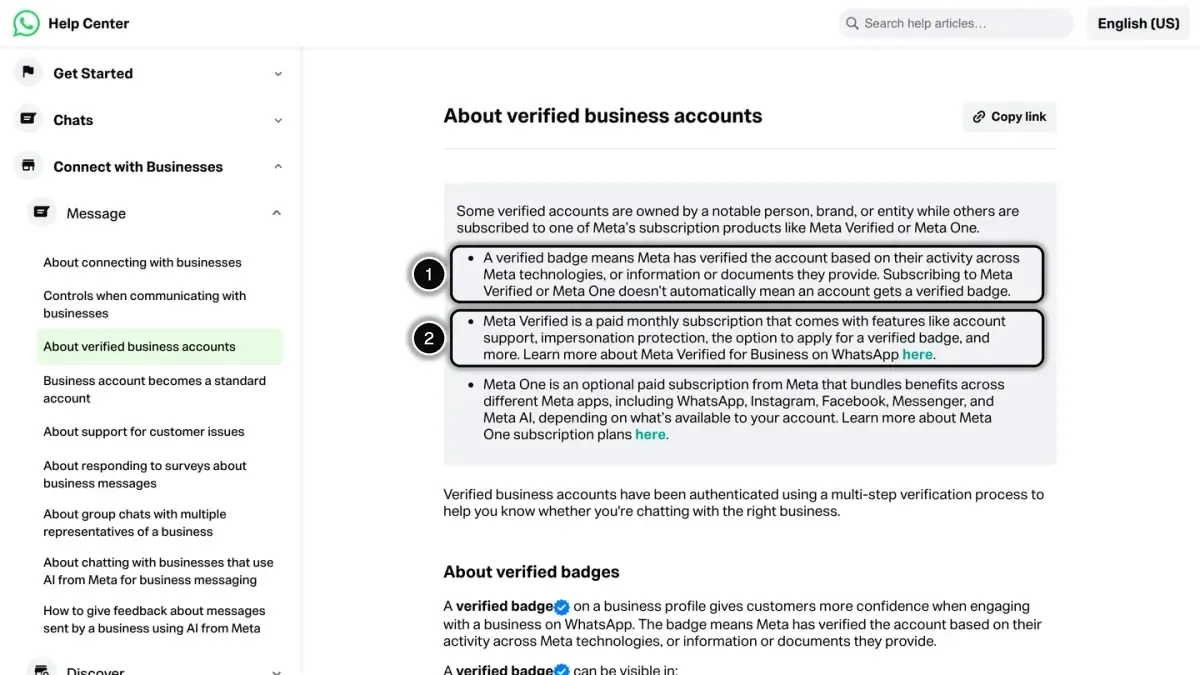 Source: WhatsApp Help Center, About verified business accounts, read on October 24, 2026. In 1, what the verified badge means; in 2, Meta Verified, a paid monthly subscription.
Four things carry the word "verified", and only two of them put a badge next to your name.
| What it is | Where it applies | Does it show a badge? | |
|---|---|---|---|
| Verified badge | The blue checkmark customers see | Both products | It is the badge |
| Official business account | A status Meta grants to a phone number after a request | WhatsApp Business Platform (API) | Yes |
| Meta Verified for Business | A paid monthly subscription | WhatsApp Business app, where offered | Yes, once Meta has verified the business |
| Business verification | A check of your legal entity in the Security Center of Meta Business Suite | Your business portfolio | No |
On the last line, Meta is explicit: verifying your business in Meta Business Suite is different from Meta Verified for businesses and will not give you a verified badge (Meta Business Help Center, as of October 24, 2026). Business verification is a condition for the API request, not the badge itself.
Meta lists two types of account on the Platform: the official business account, and the business account, which is the default for any account using the WhatsApp Business Platform or the WhatsApp Business app (About different types of WhatsApp Business accounts). That page describes no gray tick or intermediate badge.
WhatsApp also lists a second subscription that can carry the badge: Meta One business plans (Essential, Advanced, Expert and Max). WhatsApp says Meta One is in limited testing and not available everywhere yet (About Meta One plans).
Not sure which product your number is on? Our WhatsApp Business app vs API comparison explains the two.
Who is eligible for the verified badge?
On the WhatsApp Business Platform (official business account)
Meta for Developers lists five criteria (Official Business Accounts, read on October 24, 2026):
- the business complies with the WhatsApp Business Messaging Policy;
- the business has been registered on the WhatsApp Business Platform for at least 30 days;
- the business portfolio that owns the number has been verified through Business Verification;
- the business phone number has two-step verification enabled;
- the display name of the phone number has been approved.
The Meta Business Help Center words the third point more broadly: you need either to complete business verification or to show a record of high-quality messaging, with a minimum of 1,000 conversations over 30 consecutive days (Request a WhatsApp official business account).
What about notability? The two pages above do not list it, but two other Meta pages do. Meta's page on WhatsApp Business account types says the business has to be notable, meaning a well-known, often searched brand or entity, and that notability is assessed on the account's substantial presence in news articles from publications with sizable audiences, without counting paid or promotional content such as business or app listings. The display name page says the same. Meta gives no number of articles and no audience threshold.
Two consequences for a brand. Notability is assessed on the display name that requests the status, so a new display name is assessed again. And an approval for one number does not guarantee approval for another number with a different display name in the same account: for sub-brands, Meta suggests display names such as "{{sub-brand name}} by {{notable name}}".
Meta does not grant the status to business employees, test accounts or WhatsApp Business app phone numbers.
On the WhatsApp Business app (Meta Verified)
WhatsApp lists these requirements (eligibility for Meta Verified for Business on WhatsApp, as of October 24, 2026). The applicant must be at least 18 years old, have a phone number in a country where Meta Verified for businesses is available, and follow the Meta Verified for Business and WhatsApp Business terms. The account must:
- have been present on the WhatsApp Business app for a certain number of days (WhatsApp gives no figure);
- have recently sent a message;
- be located in a country where the subscription is available;
- have a profile name and a profile picture;
- not have an active Meta Verified subscription through Meta Business Suite.
WhatsApp adds that the subscription is currently not available to certain categories, such as government and political organizations.
How do you request the badge on the WhatsApp Business Platform?
Before you start, check the display name: Meta asks that the number already uses the correct display name, and once a number has Official Business Account status you have to contact direct support to change it (Display names). Then follow the steps of the Meta Business Help Center:
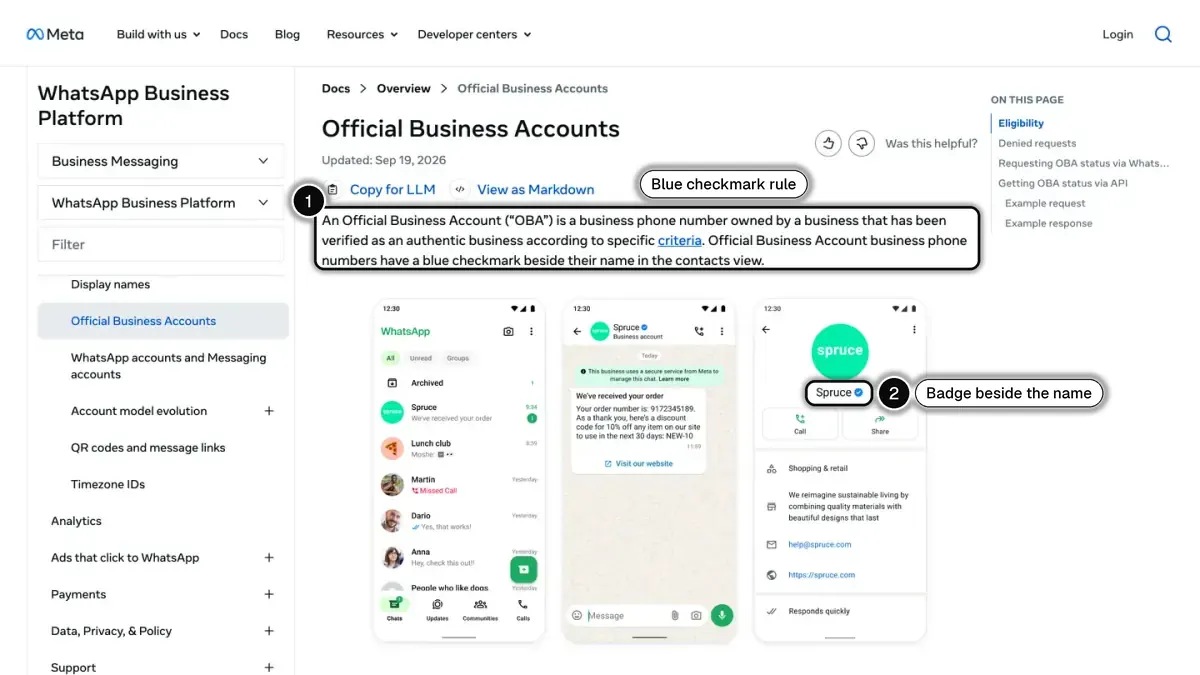 Source: Meta for Developers, Official Business Accounts (updated September 19, 2026), read on October 24, 2026. In 1, Meta's definition of an Official Business Account; in 2, the blue checkmark next to the business name.
- Go to Meta Business Suite and select your business portfolio.
- Click All tools.
- Click WhatsApp Manager.
- In the WhatsApp accounts section, find and click the phone number for which you want to request an official business account.
- In the Profile section, find Official business account and click Submit request. If two-step verification is off, click Turn on two-step verification first: the request cannot be submitted without it.
- Enter the required information.
- Click Submit.
Meta then reviews the request and sends a notification saying whether the status has been granted. It publishes no review time for this request.
If you meet the criteria and see no option to apply, Meta's instruction is to contact your Meta point of contact, your Solution Provider or Meta Support. You can read the status of a request through the API with the official_business_account field of the phone number.
If business verification is the missing piece, it happens elsewhere: in the Security Center of Meta Business Suite, click Start verification, enter your legal business name, address, phone number and website exactly as they appear for your legal entity, then confirm your connection to the business by email, phone, text message, WhatsApp message or domain verification. Meta says a decision may take up to 14 business days.
How do you get the badge in the WhatsApp Business app?
First check that the option exists for you: go to Settings or Business Tools in the WhatsApp Business app and tap Meta Verified. If the option does not appear, it is not yet available to you. Then, per WhatsApp's Help Center (Android steps, as of October 24, 2026):
- From the chat list, tap Tools.
- Tap Meta Verified.
- Tap Continue.
- Tap the button for the subscription package recommended for your business.
- Select the account or accounts you want to verify. You can bundle linked Facebook or Instagram accounts.
- Tap Continue.
- If the account meets the eligibility requirements, set up your payment method, tap Pay and complete the payment. WhatsApp notes that this payment is refunded if Meta is unable to verify your business.
- Tap Next, select your business, then tap Next again. If your business is not listed, tap None of these matches my business.
- Select a verification method, then tap Next.
- Provide your verification information, then tap Next or Submit.
- Tap Done.
WhatsApp says the verification may take up to three business days, and longer in some instances when submission volumes are high.
Three points to know before paying:
- The name must match. The business name used for the subscription has to match the name on any business documentation you provide.
- Subscribing is not the same as being verified. After you subscribe, Meta verifies the business automatically, or asks for documents (which does not guarantee verification), or the subscription runs without a verification option. You keep the other benefits of the plan in all three cases.
- The price is shown in the app. WhatsApp describes four packages (Business Standard, Business Plus, Business Premium and Business Max), all with a verified badge, and says plans may be limited to select businesses or locations. Meta's page on Meta Verified for businesses, read on October 24, 2026, lists them at $14.99, $49.99, $149.99 and $499.99 a month for one WhatsApp phone number, Facebook Page or Instagram account, and adds that plans, benefits and availability vary by region, app and account. Rely on the amount the app shows for your account.
For a store, the packages differ on what matters day to day: WhatsApp lists 4 linked devices with Business Standard and up to 10 with Business Max, and says Meta Verified subscribers have access to Click to WhatsApp ads and business broadcasts (About Meta Verified for Business on WhatsApp).
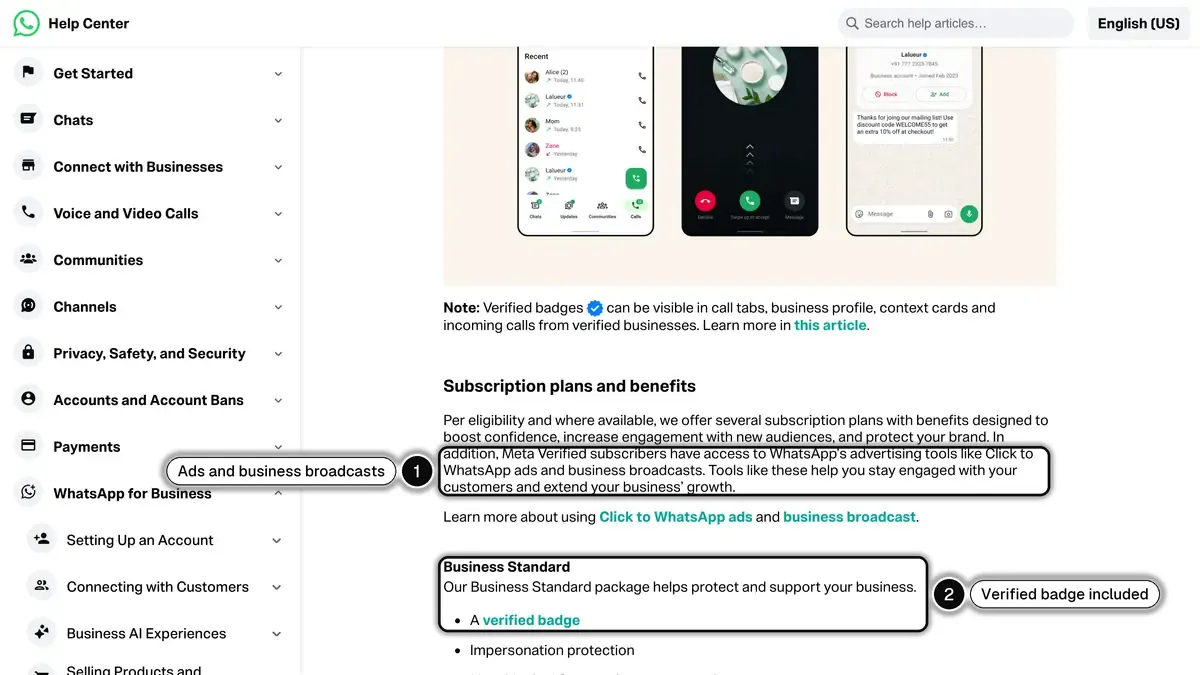 Source: WhatsApp Help Center, About Meta Verified for Business on WhatsApp, read on October 24, 2026. In 1, the advertising tools that come with the subscription; in 2, the verified badge in the entry package.
What happens if your request is refused, and when can you apply again?
Official business account. A denial means Meta's team reviewed the account and found that it does not meet the eligibility requirements at this time. Meta adds that decisions cannot currently be appealed, and that you must wait 30 days before submitting another request (Meta Business Help Center and Meta for Developers, as of October 24, 2026). Meta publishes no list of refusal reasons beyond the eligibility criteria. In the meantime you can still edit your business profile: picture, email, website and description. Our guide to WhatsApp Business profile optimization covers those fields.
Business verification. Meta lists these reasons for a rejected submission (Meta Business Help Center):
- submitting, or being suspected of submitting, false or misleading information;
- attempting to claim or verify a business portfolio you do not own or are not authorized to represent;
- trying to circumvent Meta's verification review system;
- having a website that fails to load, is not HTTPS compliant, or contains a link that leads to an error message.
Here Meta says you may be eligible to appeal, from the Security Center.
Meta Verified in the app. WhatsApp gives three reasons a verification fails (Can't complete verification):
- you did not complete the verification process (the subscription is canceled and you are eligible for a refund);
- WhatsApp could not confirm your connection to the business (choose a different business record or verification method);
- you changed your WhatsApp Business profile after subscribing.
If your business is newly registered and does not appear on the Select your business screen, WhatsApp recommends trying again after 4 weeks. If your business name differs from your profile name, tap Update profile name: WhatsApp says the review typically takes about 48 hours.
What does the badge change for a store, and what does it not change?
What Meta says changes with an official business account (same Meta Business Help Center page, as of October 24, 2026):
- Your name instead of your number. The display name replaces the phone number in the chat list, chat screens, chat groups and contacts view, even if the customer has not saved you as a contact. For a standard business account, the display name appears only in the contacts view, in smaller text.
- The badge itself, in the profile and in chat thread headers.
- Search inside WhatsApp. Meta notes that a number without the status does not appear in search results when users look for it inside WhatsApp, unless the user has added it to their contacts.
For an online store, the first point is the visible one. Most of your messages reach customers who never saved your number: an order confirmation or shipping update, an abandoned cart reminder, a back-in-stock alert. Without the status, the chat list shows a phone number; with it, your store name and the badge.
For a Meta Verified subscriber on the app, WhatsApp says the badge can be visible in the Calls tab, business profiles, context cards, chats and incoming calls.
What the badge does not change:
- Messaging limits. Meta's messaging limits page does not mention the badge. A new business portfolio starts at 250 and moves to 2,000 by completing a scaling path: verifying the business, having your partner verify it, or sending 2,000 delivered messages outside customer service windows to unique users within a 30-day period, using templates with a high quality rating. After that, Meta raises the limit automatically (10,000, 100,000, then unlimited) based on message quality and usage. See how the quality rating works.
- The rules. The Messaging Policy applies with or without a badge. Complying with it is the first eligibility criterion.
- Permanence. WhatsApp writes that a verified badge is not permanent: Meta may ask for additional verification, such as an identity document and a selfie, and remove the badge if it is not completed or if the account no longer meets the requirements. On the app, editing your business profile after you get the badge costs you the verified status, switching the account to WhatsApp Messenger removes it, and changing your phone number cancels the subscription.
Meta publishes no figure on how the badge affects opt-in, reply or conversion rates, so we quote none.
What should a Shopify store do first?
If your number runs through an API provider, you are on the WhatsApp Business Platform: the route is the official business account, and the request is made in your own WhatsApp Manager. Start with the conditions you control: an approved display name, two-step verification, and business verification in the Security Center. Business verification also counts twice: it is one of Meta's paths to the 2,000 messaging limit. Our WhatsApp Business API guide covers the setup, and the official business account glossary entry sums up the status.
If you run several stores or markets under one brand, plan the display names before you request the status: one number per market is common, and Meta assesses each display name on its own. Our guide to WhatsApp Business templates helps you prepare the messages those numbers will send.
If you run on the WhatsApp Business app, check whether Meta Verified appears under Tools.
Either way, the badge is not a prerequisite for messaging customers. Kanal is a WhatsApp marketing and sales app for Shopify stores, built on the WhatsApp Business API: campaigns, abandoned cart recovery, order notifications and a team inbox, set up in 5 minutes. The badge request itself stays between you and Meta, in your own WhatsApp Manager. Plans start from $89 a month on the pricing page.
Sources
All read on October 24, 2026.
- Meta for Developers: Official Business Accounts, Display names, Messaging limits
- Meta for Business: Meta Verified for businesses
- Meta Business Help Center: Request a WhatsApp official business account, About different types of WhatsApp Business accounts, About WhatsApp Business display name, Verifying your business in Meta Business Suite, Why was my business verification submission rejected?
- WhatsApp Help Center: About verified business accounts, About Meta Verified for Business on WhatsApp, How to subscribe, Eligibility requirements, Can't complete verification, About Meta One plans
See Kanal on your own store
- Your campaigns and cart reminders on WhatsApp, starting from your own store
- Post-purchase offers, back-in-stock alerts, then the AI agent that advises your customers
- You leave with the plan that fits and its price
From €89/month
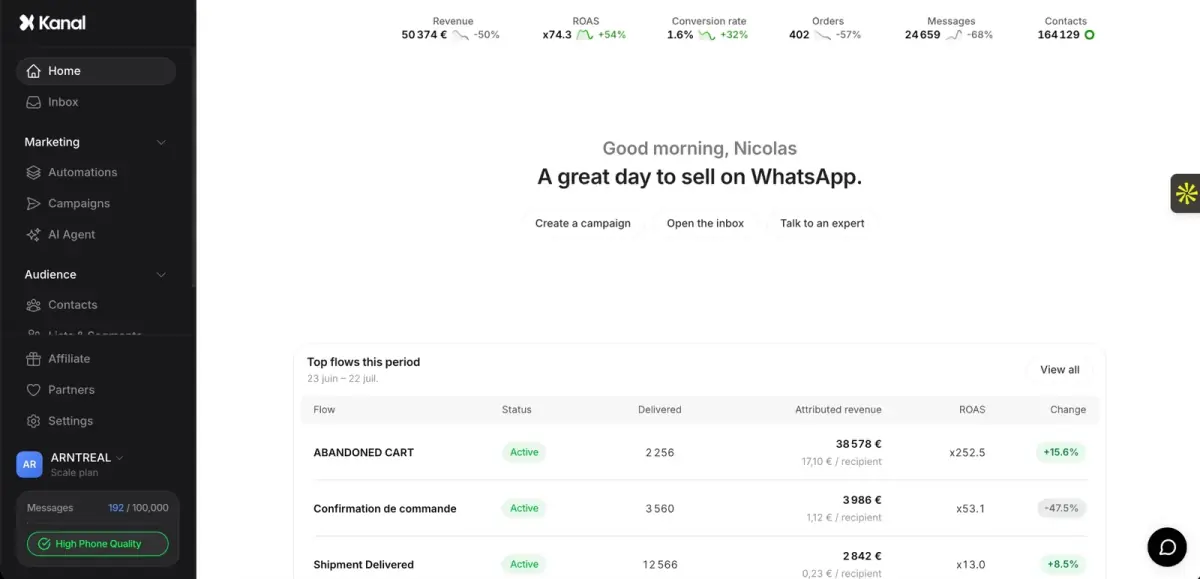
- brands
- 500+
- to set up
- 5 min
- open rate on WhatsApp
- +90%
Nicolas helps e-commerce brands grow revenue with WhatsApp marketing. With deep expertise in Shopify ecosystems and conversational commerce, he shares proven strategies for abandoned cart recovery, broadcast campaigns, and AI-powered customer engagement.