WhatsApp Quality Rating: How Meta Scores Your Number (2026)
How Meta rates your WhatsApp Business number Green, Yellow or Red from 7 days of customer feedback, what a low rating changes, and how to recover it.
 Nicolas ProvostMay 26, 2026 · 14 min read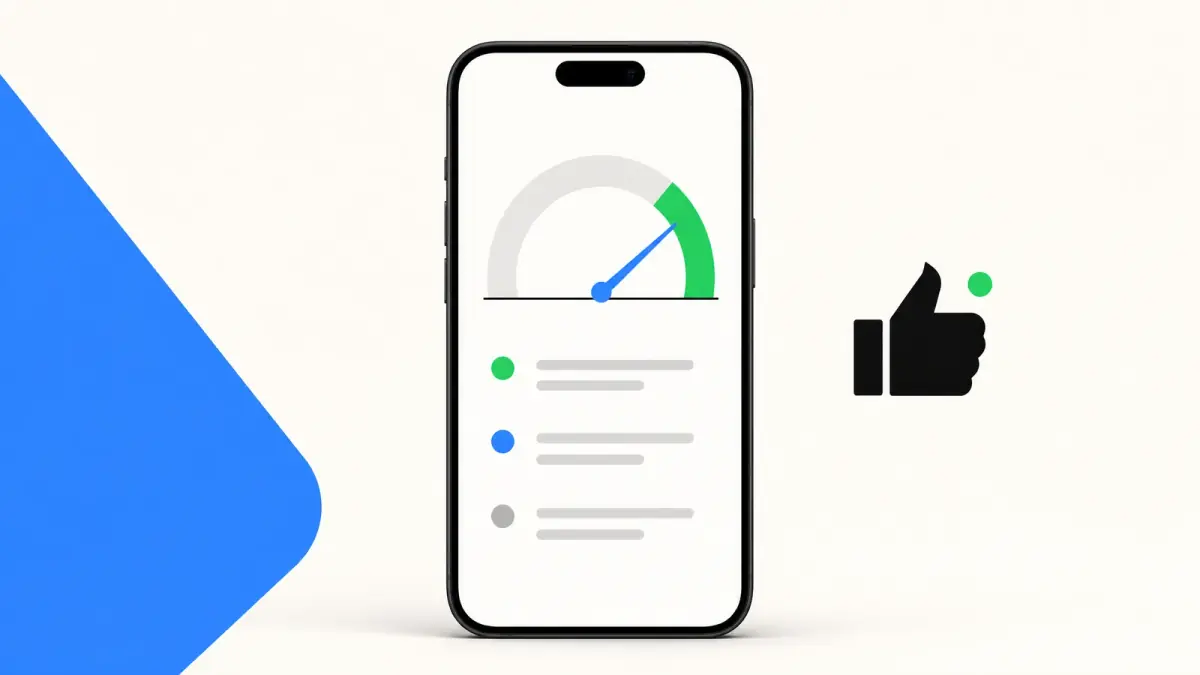
Summarize this article with an AI
 ChatGPT
 Claude
Table of contents (19)
Key takeaways
- Meta rates each WhatsApp Business Platform number Green, Yellow or Red from the feedback of customers who received its messages over the past seven days, such as block reasons and reports.
- Each template has its own rating too, and a template that reaches Red is paused for 3 hours, then 6 hours, then disabled the third time.
- Meta only raises your messaging limit when you send high-quality messages across all your numbers and templates; the Flagged and Restricted number statuses were discontinued on October 7, 2025.
- To recover, read the block reasons in WhatsApp Manager, stop or fix the templates behind them, re-check opt-in and narrow your audience.
If your WhatsApp Business number shows a Yellow or Red badge in Meta's WhatsApp Manager, you have a problem that is easy to miss. The quality rating is a score Meta calculates from how customers react to your messages over the past seven days. It decides whether your messaging limit can grow, whether your templates keep sending, and, if low quality persists, whether your number itself gets affected. If you are dealing with a full ban instead, see WhatsApp account banned: how to fix it.
The 3 Quality Levels and What Each One Means
Meta shows the quality rating of each phone number in the Quality rating column of WhatsApp Manager, according to its help article on the quality rating (read on October 23, 2026):
Green (High quality). Your number is in good standing. Meta says businesses that keep a Green rating can become eligible for more features, and automatic increases of your messaging limit require high-quality messages.
Yellow (Medium quality). Customers have started to push back. Meta lets you hover over the rating to see the block reasons, when it has them. Messages keep going out, but this is the moment to find the source.
Red (Low quality). The negative feedback is significant. Templates that reach Red are paused automatically, and a business that keeps sending low-quality templates may eventually see its phone number affected (details below).
Templates have their own rating, which Meta documents on its template quality page: Green (little to no negative feedback), Yellow (negative feedback from multiple users or low read rates, may soon be paused or disabled), Red (in danger of being paused or disabled soon) and Unknown (a new template still waiting for feedback).
One change to know if you read older guides: the Flagged and Restricted phone number statuses were discontinued on October 7, 2025, according to the same help article.
For an overview of where quality rating fits in the broader WhatsApp Business API stack, see the WhatsApp Business API guide and the quality rating glossary entry.
How Meta Calculates the Quality Rating
Meta does not publish the exact formula. What it does say:
- The window is the past seven days. The number's rating is based on the messages your customers received over the past seven days.
- Customer feedback drives it. The rating is determined by feedback such as the reason a customer gives when blocking your number, and other reports.
- Block reasons are explicit. A customer who blocks you can pick "No longer needed", "Didn't sign up", "Spam", "Offensive messages" or "No reason".
- Templates also count engagement. A template's rating is based on usage, customer feedback and engagement, and low read rates alone can move it to Yellow or Red.
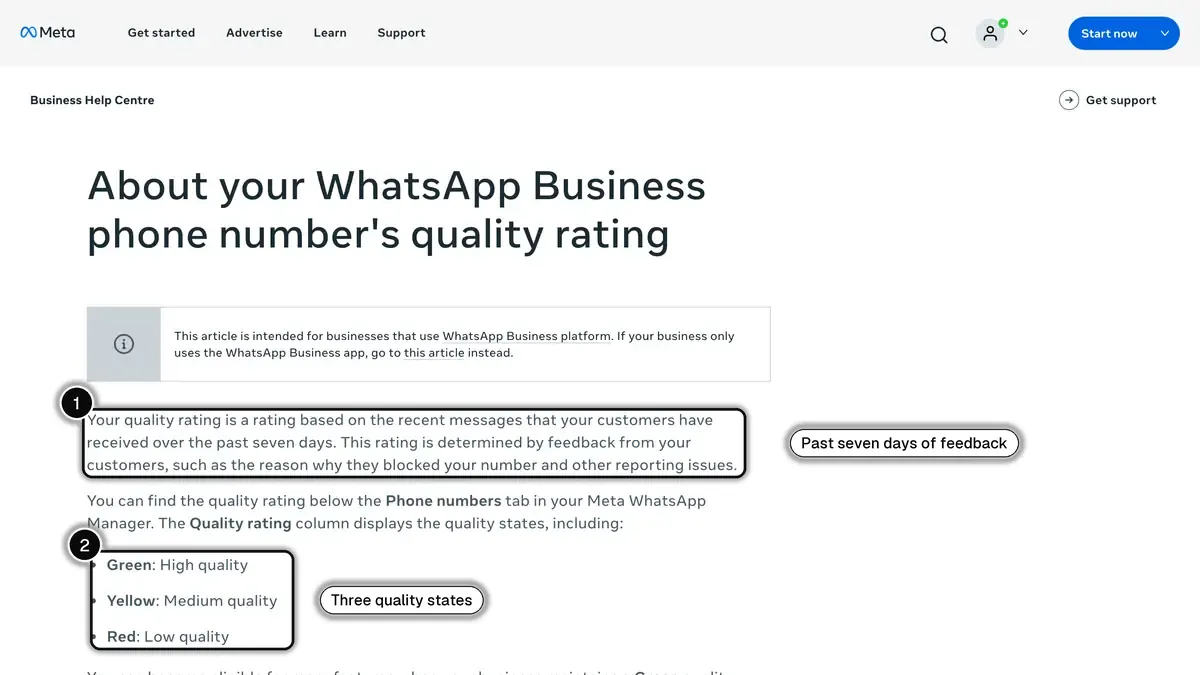
Source: Meta Business Help Centre, About your WhatsApp Business phone number's quality rating, read on October 23, 2026.
The block reasons point to the cause. "Didn't sign up" means an opt-in problem. "No longer needed" points to an old list or messages that are too frequent. "Spam" usually means promotions the customer did not expect. Read them before you change anything.
Messaging Limits Tied to Quality Rating
Your messaging limit is the number of unique customers you can message outside a customer service window in a moving 24-hour period, documented in Meta's messaging limits reference. The levels are 250, 2,000, 10,000, 100,000 and Unlimited, set at the business portfolio level and shared by all of its phone numbers.
Tier progression rules, as read on Meta's page on October 23, 2026:
| Current tier | Upgrade rule |
|---|---|
| 250 | Move to 2,000 by completing one of Meta's scaling paths: verify your business, have your partner verify it, or send 2,000 delivered messages outside customer service windows within 30 days using high-quality templates |
| 2,000 | Automatic increase to 10,000 if you send high-quality messages and have used at least half of your current limit in the last 7 days |
| 10,000 | Same rule to reach 100,000 |
| 100,000 | Same rule to reach Unlimited |
The key catch: automatic increases require high-quality messages across all of your phone numbers and templates. A Yellow or Red rating can hold your limit where it is, even when you use more than half of it. It is easy to miss when scaling stalls on an otherwise healthy account.
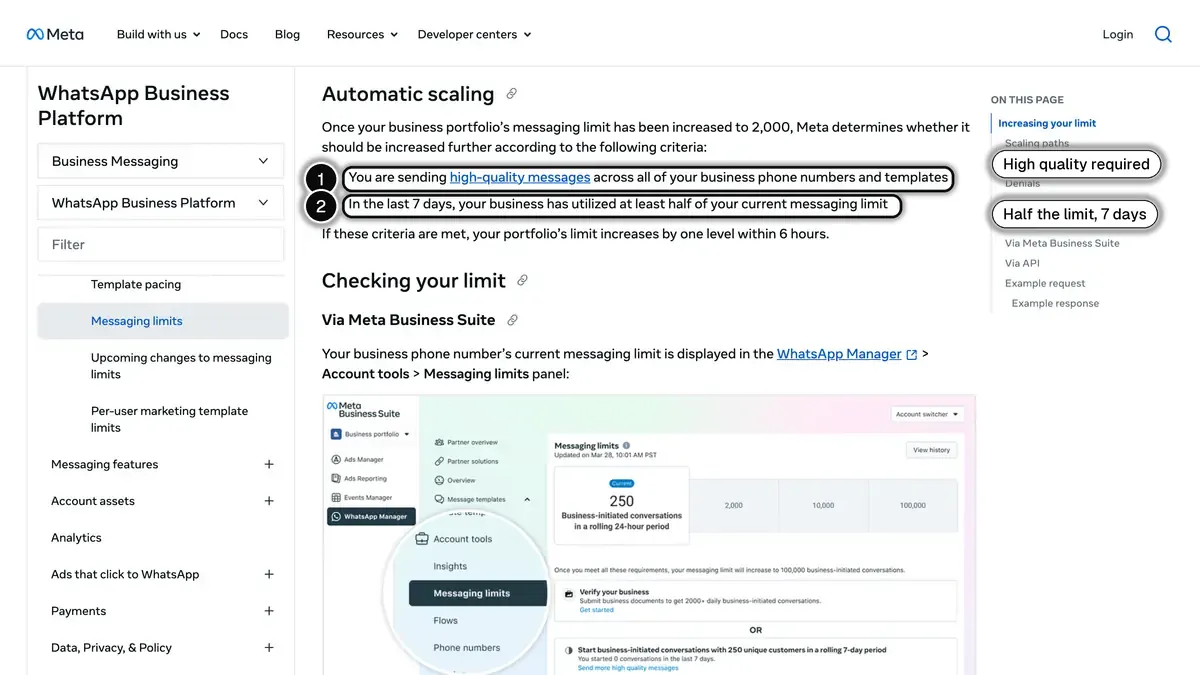
Source: Meta, Messaging Limits (developer documentation, updated May 21, 2026), section "Automatic scaling", read on October 23, 2026.
For the deeper rules around messaging tiers, see the messaging limits glossary entry.
Common Signals That DROP Your Rating
These are the sending patterns that drag a rating down.
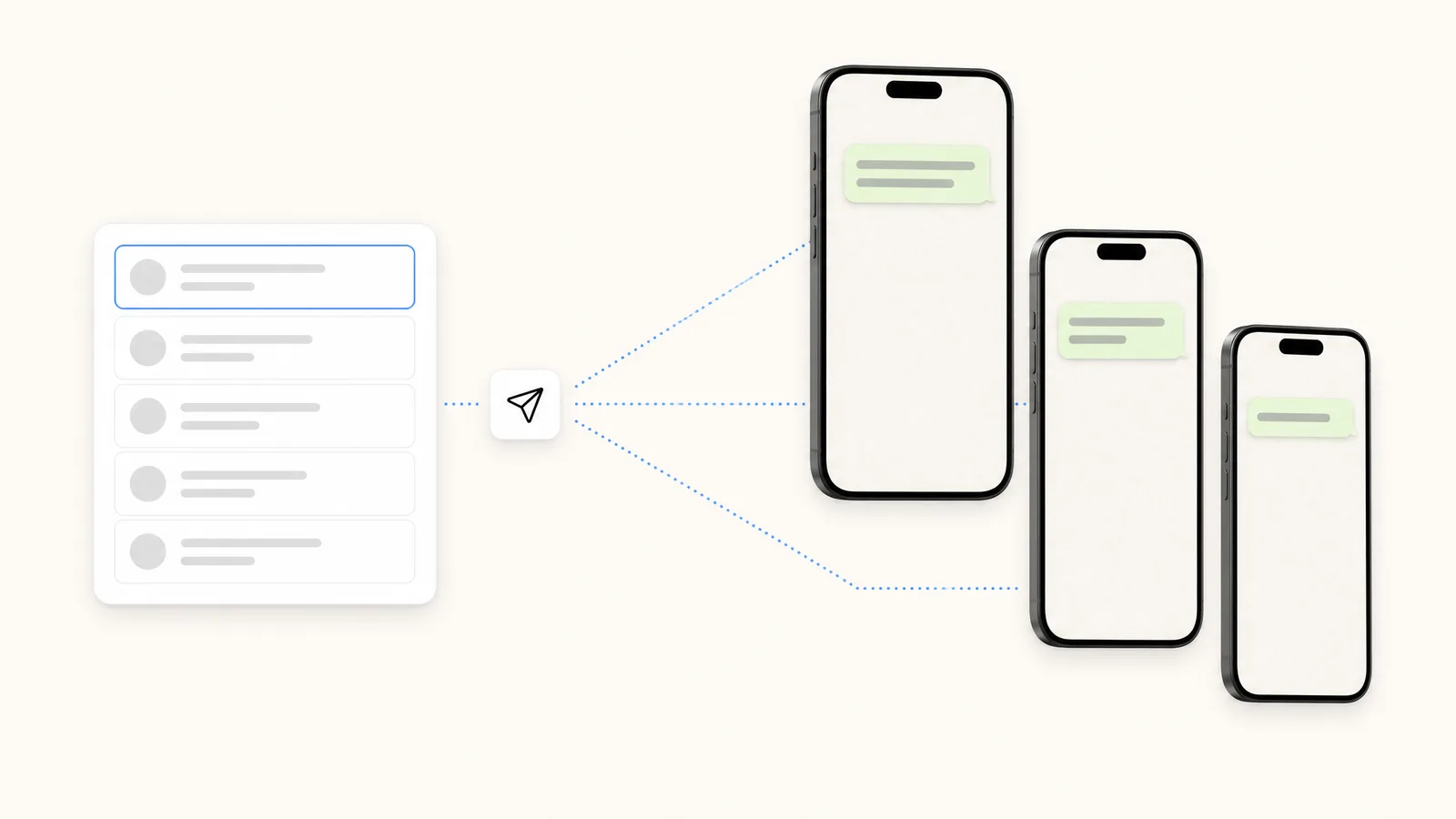
Untargeted broadcast. A single send to your whole list, not segmented by purchase recency, country or product interest. Most recipients have no reason to want it, and some of them block. A WhatsApp broadcast works when it goes to the people it was written for.
Marketing template to non-opted-in numbers. Numbers added to the list from a CSV with no explicit opt-in, a direct violation of Meta's opt-in requirements. The recipient does not recognize the sender and blocks with "Didn't sign up".
The same promotion again and again. Sending the same marketing template to the same people week after week. Customers stop reading it, and read rates count for templates.
Missing opt-out. No clear way for the recipient to stop messages. Frustration escalates straight to block instead of replying STOP.
A big first send from a new account. Starting with a large marketing send to a cold list. Meta's business portfolio pacing holds large template sends from portfolios that have sent fewer than 500,000 templates in the last 365 days and releases them in batches while it checks the feedback.
Country mismatch. Sending a template to customers in a country your opt-in did not cover. Recipients who never signed up for it are more likely to block.
Long inactive gaps. A list you have not messaged for months. Recipients forgot they signed up, and the first re-engagement send draws blocks.
For more on staying compliant before things go wrong, see the WhatsApp opt-in and GDPR guide.
Common Signals That LIFT Your Rating
The flip side, equally important to understand.
Strong opt-in quality. Recipients who opted in on a checkout page or post-purchase consent screen know who you are and expect your messages, so they have less reason to block.
Tight segmentation. Sending the right message to the right segment: a purchase recency cut, a country cut, or a product interest cut.
Templates that invite an answer. Quick reply buttons give the customer something to do other than block, and a reply opens a customer service window for the rest of the conversation. Our WhatsApp Business templates guide has examples for each category.
Mix of utility templates, service replies, and marketing templates. Utility templates (order updates, shipping, OTP) are messages customers expect.
Reasonable frequency. Space out your marketing templates so each one has a reason to be read.
Visible business identity. Verified business name, profile photo and business description. Recipients who recognize the sender are less likely to report it (see our verified badge guide).
For best practices on building this kind of trust, see the WhatsApp Business profile optimization guide and the WhatsApp newsletter guide.
How to Check Your Current Quality Rating
The rating is visible in several places.
WhatsApp Manager, Phone numbers tab. The Quality rating column shows Green, Yellow or Red for each number. On Yellow or Red, hover over the rating to see the block reasons, when Meta has them. The icon in the Settings column shows the last 30 days, with the lowest score of each day.
WhatsApp Manager, Manage templates. Each approved template shows "Active - High quality", "Active - Medium quality", "Active - Low quality" or "Active - Quality pending". Through the API, the same score is the template's quality_score field.
Webhooks. Meta sends a message_template_quality_update webhook when a template's quality score changes, and a message_template_status_update webhook when a template is paused. The phone_number_quality_update webhook reports changes to your messaging limit and throughput, not the color of the rating.
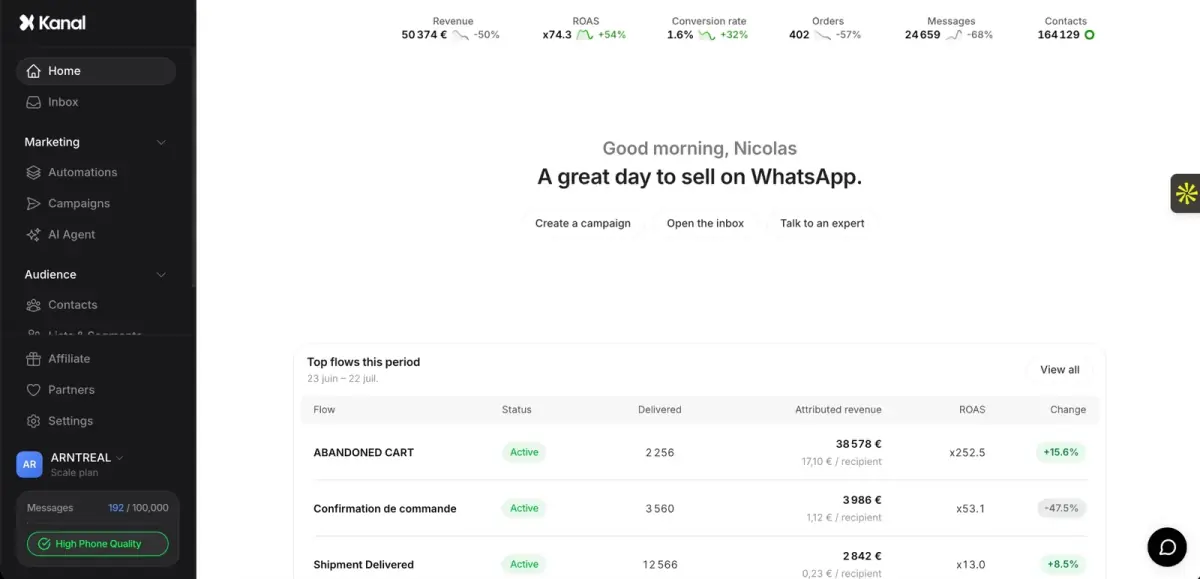
Inside Kanal. Kanal reads the Meta quality rating of each connected WhatsApp number.
If you do not see the rating, your number is either on the regular WhatsApp Business app (no rating exposed) or your provider does not surface the data. See our comparison of WhatsApp Business API providers for what to check when picking a Business Solution Provider.
Step-by-Step Rating Recovery Playbook
Run this as soon as your number or a template turns Yellow or Red. The sooner the negative feedback stops, the sooner the rating can recover.
Step 1: Read the block reasons. In WhatsApp Manager, hover over the Yellow or Red rating to see why customers blocked you, then open Manage templates and list the templates rated Medium or Low quality. Those are your offenders.
Step 2: Stop the templates behind the drop. Pause the campaigns and flows that use them. Keep the utility templates customers expect (order confirmations, shipping updates) and your replies to customers running.
Step 3: Re-verify opt-in for all active recipients. Pull your full WhatsApp recipient list. Confirm that every segment has explicit opt-in with a timestamp and a source. Remove any segment where consent is uncertain. If you cannot prove consent, the contact should not be on the list.
Step 4: Fix the content, the audience and the frequency. Rewrite the template that drew blocks: an edited template goes back to Meta's review before it can be sent. Narrow the next sends to customers who ordered or engaged recently, and space out your marketing messages.
Step 5: Watch the rating recover. Check the 30-day history in WhatsApp Manager over the following week. The number's rating covers the past seven days, so cleaner sends show up as older messages leave the window.
If the rating does not lift after a week or two of clean sending, treat the issue as structural (bad opt-in source, wrong audience targeting, persistent template misuse) and audit again template by template.
What Happens at Red
Red is not a fine. It sets off a series of protections on Meta's side, all documented:
- Template paused. A template that reaches Red is paused automatically: 3 hours the first time, 6 hours the second, then disabled the third time, according to Meta's template pausing page. You are not charged for attempts to send a paused template, and they do not count against your messaging limit, but the API rejects them (more on charges in our WhatsApp Business pricing guide).
- Template pacing. Marketing and utility templates without a Green rating can be paced: Meta sends the first messages, holds the rest while it collects feedback, then releases them or drops them if the feedback is bad, as its template pacing page describes.
- Messaging limit frozen. Automatic increases need high-quality messages, so your limit stays where it is until the rating recovers.
- Phone number at risk. Pausing does not affect the phone number at first, but Meta warns that if a business consistently sends templates that reach low quality, the phone number may eventually be impacted.
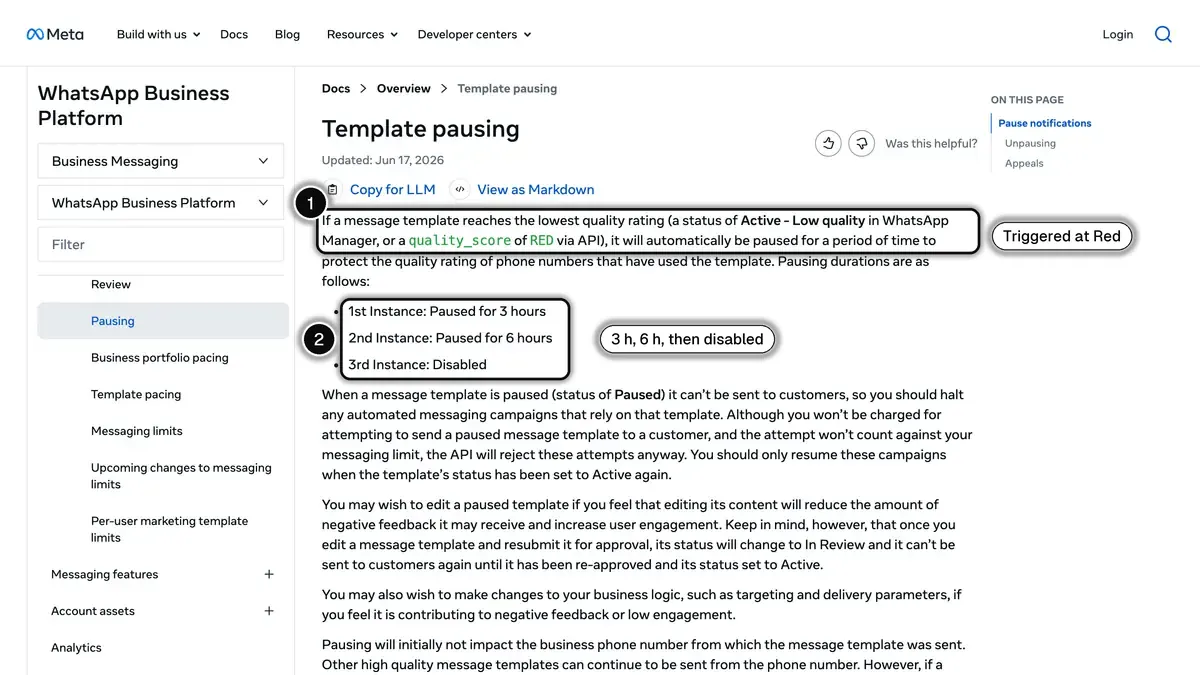
Source: Meta, Template pausing (developer documentation, updated June 17, 2026), read on October 23, 2026.
The fastest way to make things worse is to ignore Red and keep sending the same marketing templates. The fastest way to recover is to stop them and send only what customers expect until the feedback improves. If your number has already been banned, the guide linked in the introduction covers the appeal.
Quality Rating vs Account-Level Enforcement
These two are often confused. They are distinct.
Quality rating applies to each phone number, and separately to each template. It reflects how customers react to your messages over the past seven days. Three levels: Green, Yellow, Red.
Account-level enforcement concerns your business portfolio and your compliance with Meta's policies. The messaging limit is set for the whole portfolio and shared by its numbers. And when Meta monitors a portfolio for suspicious activity, its business portfolio pacing page explains that Meta can hold template sends, prevent the portfolio from sending or creating templates during a review, and fully disable it if the activity violates WhatsApp's policies, with an option to appeal.
Fixing one does not fix the other. Most quality rating recoveries are number-level fixes (templates, broadcasts, opt-in), while account-level issues go through Meta's policy review.
How Kanal Helps Protect Your Rating
Kanal does not change how Meta scores your number, but it removes the most common causes of blocks:
- Opt-outs handled automatically. A customer who replies STOP, or an equivalent keyword in several languages, is opted out at once and excluded from your next sends.
- Segments instead of full-list sends. Target customers by number of orders, by orders over a period, or by how they engaged with your last WhatsApp messages (read, clicked, replied).
- Rating in view. Kanal reads the Meta quality rating of each connected number.
For the full feature set, see the WhatsApp campaigns page, pricing, or book a demo.
Where to Go Next
If your number is currently Green, the highest-leverage move is to check WhatsApp Manager regularly and keep every campaign on an opted-in, segmented audience. If your number is Yellow or Red, run the 5-step recovery playbook in this article now. Your rating matters even more now that Meta also applies per-user limits on marketing messages (see WhatsApp marketing in the USA in 2026) and that businesses become findable in WhatsApp search. If you are not sure how to read your current rating, see the WhatsApp Business API guide linked above, or book a demo and we will walk through your specific setup.
FAQ
What is the WhatsApp Business quality rating?
The WhatsApp Business quality rating is a score Meta gives each phone number on the WhatsApp Business Platform (the API), based on the feedback of customers who received its messages over the past seven days. It shows as Green (high), Yellow (medium) or Red (low) in WhatsApp Manager, and each template has its own rating as well.
How is the WhatsApp quality rating calculated?
Meta does not publish a formula. The number's rating reflects the past seven days of customer feedback, such as block reasons and other reports. For templates, Meta also looks at engagement: negative feedback from multiple users or low read rates move a template to Yellow or Red.
What does Red quality rating mean for my business?
Red means low quality. A template that reaches Red is paused automatically (3 hours, then 6 hours, then disabled), templates without a Green rating can be paced, and your messaging limit stops growing. A business that keeps sending low-quality templates may eventually see its phone number affected.
How long does it take to recover from a Yellow or Red rating?
Meta bases the number's rating on the past seven days of feedback, so it can improve as the messages that caused the drop leave that window. A paused template unpauses on its own after 3 or 6 hours. Stop the offending sends first.
Is quality rating the same as account-level rating?
No. The quality rating applies to a phone number and to each template, and reflects customer feedback. Messaging limits apply to the whole business portfolio, and policy enforcement concerns the portfolio's compliance with Meta's rules.
Does Meta notify me when my quality rating drops?
Meta notifies you when a template is paused (WhatsApp Manager notification, email and webhook) and sends a webhook whenever a template's quality score changes. For the phone number, check the Quality rating column in WhatsApp Manager, which keeps 30 days of history.
Can I check my quality rating in the WhatsApp Business app?
No. The quality rating is shown in WhatsApp Manager for numbers on the WhatsApp Business Platform (the API). The regular WhatsApp Business app does not surface a rating.
See Kanal on your own store
- Your campaigns and cart reminders on WhatsApp, starting from your own store
- Post-purchase offers, back-in-stock alerts, then the AI agent that advises your customers
- You leave with the plan that fits and its price
From €89/month
- brands
- 500+
- to set up
- 5 min
- open rate on WhatsApp
- +90%
Nicolas helps e-commerce brands grow revenue with WhatsApp marketing. With deep expertise in Shopify ecosystems and conversational commerce, he shares proven strategies for abandoned cart recovery, broadcast campaigns, and AI-powered customer engagement.