Connect WhatsApp to Shopify: step-by-step integration guide
How to connect WhatsApp to Shopify: add a chat button, link the WhatsApp Business API with Kanal, sync orders and carts, then test before launch.
 Nicolas ProvostMay 19, 2026 · 15 min read
Summarize this article with an AI
 ChatGPT
 Claude
Table of contents (17)
Key takeaways
- To connect WhatsApp to Shopify, install a WhatsApp Business API app such as Kanal, link a number through Meta's sign-up window and turn on flows; no code is needed.
- A click-to-chat button only opens a conversation; order updates, cart recovery and campaigns need the WhatsApp Business Platform (API).
- Use a number that has no active WhatsApp or WhatsApp Business app account, and be an admin of your Meta Business Manager before you start.
- Collect marketing consent with a WhatsApp checkbox at checkout, then record it in Kanal: Kanal does not read the Shopify checkbox and only leaves opted-out contacts out of its sends.
To connect WhatsApp to Shopify, install a WhatsApp app built on the official WhatsApp Business Platform, such as Kanal, link a phone number through Meta's sign-up window, then turn on the flows you need: order confirmations, shipping updates and abandoned checkout reminders. With Kanal it takes about 5 minutes and no code. If you only want a "chat with us" button, a free click-to-chat link is enough, but it will not send any message for you.
This guide covers both options, then the full Kanal setup step by step: what to prepare, how the Meta connection works, which Shopify events trigger a WhatsApp message, how to collect opt-ins and the five tests to run before you go live. For an overview of what the connection does once it is live, see WhatsApp for Shopify.
Two ways to connect WhatsApp to Shopify
| Click-to-chat button | WhatsApp Business Platform app (Kanal) | |
|---|---|---|
| What it does | Opens a WhatsApp chat with your number | Sends and receives messages from your store, automatically |
| Order and shipping updates | No | Yes, triggered by Shopify events |
| Abandoned checkout recovery | No | Yes |
| Campaigns to segments | No | Yes, with approved templates |
| Shared inbox for the team | No, one phone | Yes, with Shopify order context |
| AI agent | No | Yes, from the Scale plan |
| Cost | Free | From $89 a month on the Shopify App Store, plus Meta's message fees at cost |
A click-to-chat link is a URL in the form https://wa.me/ followed by your number in international format, without the plus sign, zeroes, brackets or dashes. WhatsApp documents it in its Help Center, along with a variant that adds ?text= and a URL-encoded message to pre-fill the first line. Put it on a button in your header, product pages or contact page, and every click opens a conversation with the number running WhatsApp or WhatsApp Business on your phone.
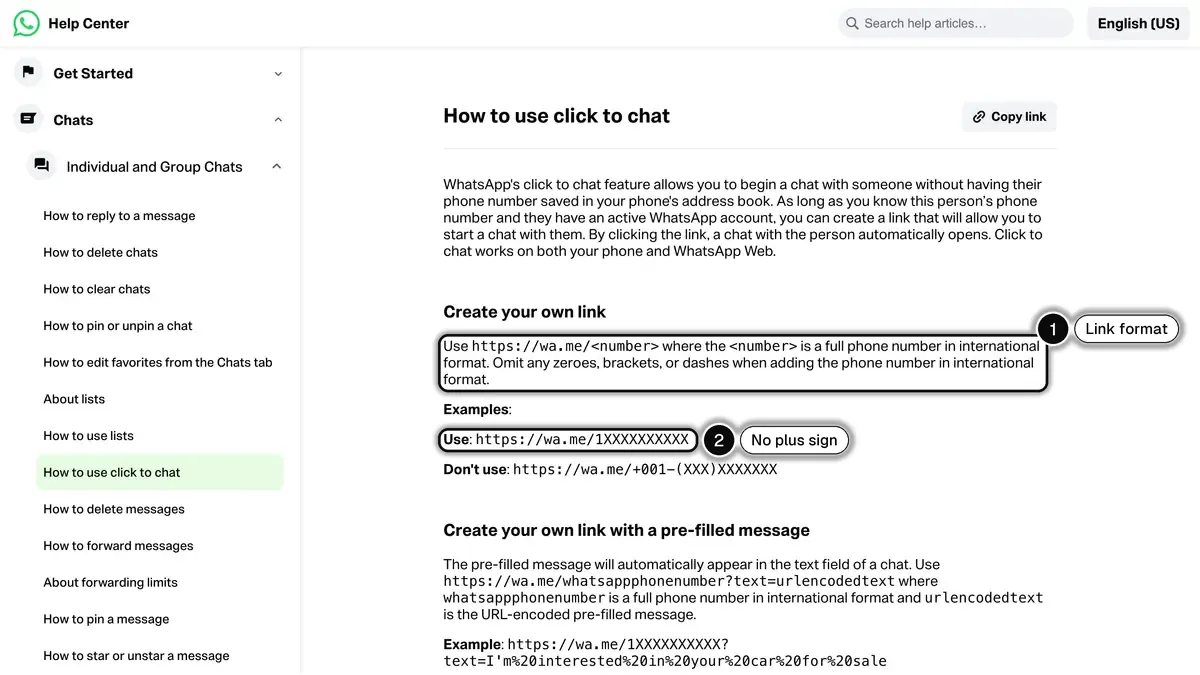 Source: WhatsApp Help Center, How to use click to chat, read on October 23, 2026. In 1, the link format; in 2, a correct example, with no plus sign.
That covers support questions. It does not cover anything the store should send by itself: an order confirmation, a tracking link, a cart reminder or a campaign. Those run on the WhatsApp Business Platform, which Meta opens to businesses through solution providers and apps. The rest of this guide sets it up with Kanal.
What you need before you start
- A phone number with no active WhatsApp app account. The number you register must not have an account on the WhatsApp app or the WhatsApp Business app installed on a phone. Use a new number, or free your current one first. Do not use a number or a display name suggested by Meta during the connection.
- Admin access to your Meta Business Manager (business portfolio), with your Facebook login. If you don't have one, you can create it during sign-up.
- Full admin rights on Shopify, to install the app and edit the checkout settings.
- Your brand details: the display name customers will see, your category and your website URL. The display name must match your brand.
- A business allowed on WhatsApp. Kanal's onboarding checklist reminds you that Meta refuses accounts selling products it prohibits, such as CBD, alcohol, weapons or gambling, and expects a valid website.
How to connect WhatsApp to Shopify with Kanal
Step 1: install Kanal from the Shopify App Store
Open Kanal on the Shopify App Store and click Install. The app connects to your store's products, customers, checkouts and orders, so the flows you build later run on real store events.
On October 23, 2026, the listing showed a 5.0 rating from 136 reviews, the Pro plan at $89 a month and the Scale plan at $149 a month.
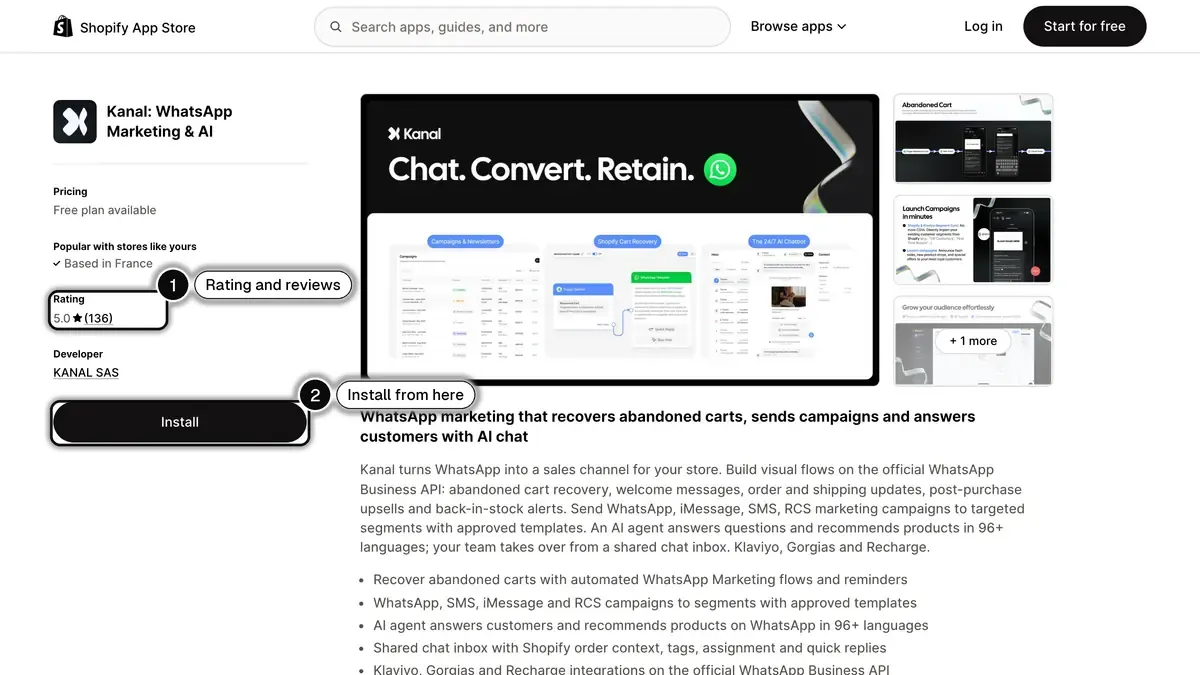 Source: Kanal listing on the Shopify App Store, read on October 23, 2026. In 1, the rating and number of reviews; in 2, the Install button.
Step 2: connect your Meta account
Once the app is installed, Kanal opens an onboarding checklist and brings you back to it until your number is connected. The first screen lists Meta's conditions: confirm them, then click Connect my Meta account. A secure window managed by Meta opens. Log in with your Facebook credentials, then:
- choose the Business Manager (business portfolio) that will own your WhatsApp account, or create one;
- choose or create the WhatsApp Business Account (WABA) that will hold your templates.
This is the official Embedded Signup flow that Meta provides to solution providers: you never share a password with Kanal. Meta's documentation lists what the window asks for, from the business portfolio to the phone number and the display name.
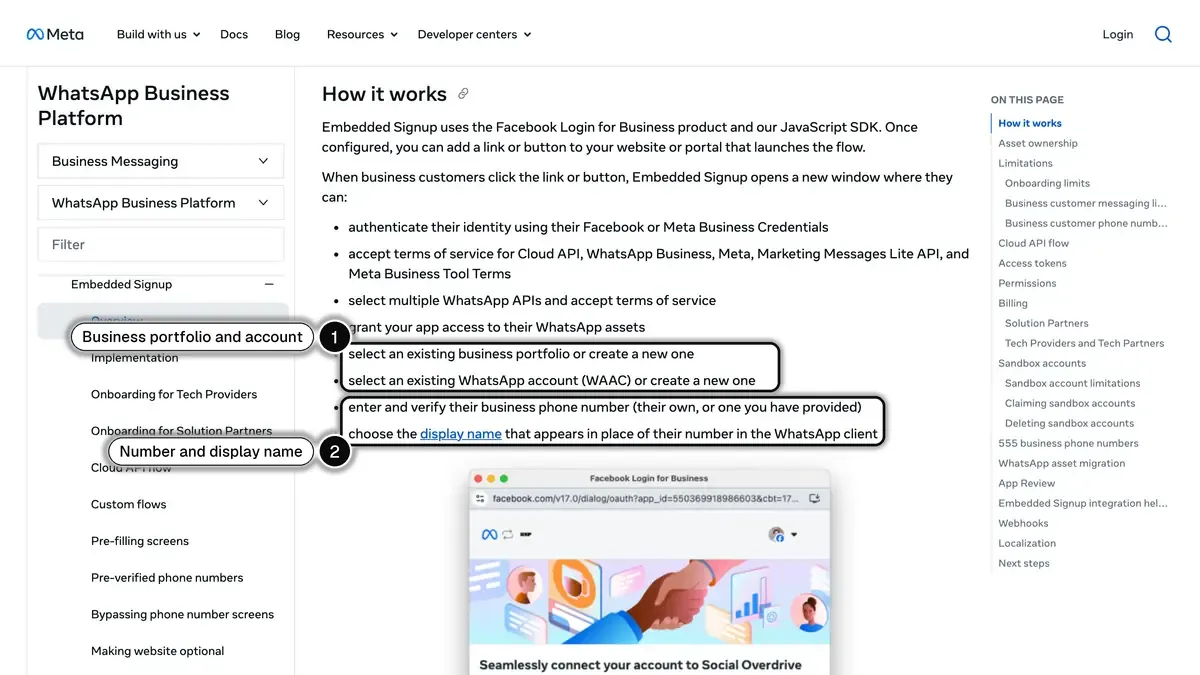 Source: Meta, Embedded Signup documentation for the WhatsApp Business Platform, read on October 23, 2026. In 1, the business portfolio and WhatsApp account; in 2, the phone number and display name.
Step 3: set up the profile and verify the number
Still in Meta's window:
- enter your display name, your category (Kanal pre-fills "Shopping and retail", which fits most stores) and your website URL;
- enter the phone number, choose to receive the 6-digit code by SMS or by phone call, and type it in Meta's window;
- confirm the last permissions. The window closes and you are back in Kanal, connected.
If the code does not arrive within 2 minutes, check that the line is not on "do not disturb" and that unknown calls or SMS are not blocked, or switch to the other delivery method. These steps follow Kanal's help article on connecting your number. Kanal then lets you fill in the WhatsApp profile (photo, description, website) or skip it for later.
Step 4: test the number and choose your plan
Kanal checks that the number sends and receives messages: from your personal WhatsApp, send the code shown in Kanal to your new number, which replies with a 4-digit code to enter in Kanal. Then choose your plan (Pro, Scale or Business) and add a card. Meta bills each WhatsApp message, and Kanal pays those fees on your behalf and charges them to that card.
Step 5: add the WhatsApp widget to your theme
In Kanal, click your team name, then Settings, and open Shopify Widget in the Developers section. Click the button that installs the widget: the Shopify theme editor opens on the Kanal widget. Check that it is enabled, enter your number in international format, your brand name and an avatar (your logo or a team member's photo), then save in Shopify. You can add up to three buttons, each linked to an automation that starts on an inbound message, as explained in the widget help article.
Step 6: collect the WhatsApp opt-in and record it in Kanal
A phone number given for order notifications does not allow you to send promotions: Meta's WhatsApp Business Messaging Policy requires opt-in permission before you message people. The Shopify checkout is a natural place to collect it:
- In Shopify, open Settings > Checkout.
- Under Marketing consent, check SMS marketing. In Europe, leave the box unchecked by default so the consent stays valid under the GDPR.
- Click Manage checkout language, search "SMS" and rewrite the label to mention WhatsApp and your brand, for example: "Send me exclusive offers and order tracking from [Your Brand] on WhatsApp."
- Save.
Then record that consent in Kanal. Kanal does not read the Shopify checkbox: customers created from Shopify arrive with the Unknown status, and campaigns only leave out contacts who opted out. Set contacts to opted in with an Opt-in step in an automation after they say yes, an import of contacts who gave consent, or a manual change from the inbox, then send campaigns to a list of opted-in contacts. When a customer replies STOP, Kanal switches them to opted out. Our WhatsApp opt-in and GDPR guide covers the legal side.
Step 7: write your templates and activate your first flows
Any message that starts a conversation (a cart reminder, an order update, a campaign) must use a template approved by Meta. In Kanal, you write it directly in the automation or campaign editor and submit it: Meta's review can take up to 24 hours. Then activate the flows below in order.
Which Shopify events trigger a WhatsApp message?
Kanal's flows start on these Shopify events, as listed in its guide to automation triggers:
| Shopify event | When it fires | Typical WhatsApp message |
|---|---|---|
| Order created | A Shopify order is created, paid or not (cash on delivery included) | Order confirmation and thank-you |
| Abandoned checkout | The customer entered their details but did not pay | Cart reminder with a button back to their own checkout |
| Fulfillment created | You create the shipment with its tracking details | "Your order has shipped" with the tracking link |
| In transit | The carrier scans the parcel | Tracking update |
| Out for delivery | The parcel is on the final route | Delivery today |
| Delivered | The carrier confirms delivery | Delivery confirmation, then a review request |
| Ready for pickup | The parcel reaches the pickup point | Pickup alert |
Two practical rules:
- Shipment flows need tracking data. The tracking number and tracking URL must be on the Shopify order, for every status. For the in transit, out for delivery and delivered steps, your carrier also has to send its statuses to Shopify: open a delivered order in your admin and check that the status appears under the tracking number. If it does not, only "order shipped" can be automated until your carrier enables the sync (Kanal's delivery tracking guide includes a message to send them).
- Cart reminders stop by themselves. When the customer orders after the flow has started, the next reminders are not sent, so nobody receives a reminder for a cart they already paid.
Messages can use Shopify data as variables: first name, order number, order total, tracking number, carrier and the order status page. On the Scale plan, Kanal can also create a unique Shopify discount code inside a flow and add tags to the Shopify customer.
Which flows to turn on first
- Order confirmation. A utility message right after the order, to customers who opted in. See WhatsApp order notifications.
- Shipping update. On "fulfillment created", with the tracking link as a button.
- Abandoned checkout, first reminder. One short message with the product and a button back to the checkout. Measure what it recovers before adding a second reminder. Our abandoned cart recovery page shows how Kanal builds it, and our WhatsApp cart recovery templates give you wording written for Meta's review.
- Delivery confirmation and review request. Once delivery statuses reach Shopify.
- Post-purchase cross-sell. A few days after delivery, filtered on the product bought. See post-purchase upsell.
- Welcome message. For new opt-ins from the widget or a QR code.
Once the flows run, send your first WhatsApp campaign to opted-in customers, and if you use Klaviyo, connect it to reuse its segments and flows: see the Klaviyo WhatsApp integration.
Test before launch: 5 checks
Run these on your own number before you message real customers.
- Place a test order. The confirmation should arrive with the right first name, order number and total.
- Abandon a checkout. Enter your details at checkout and leave without paying. Use a short wait for the test, then check the product and the button back to the checkout.
- Fulfill the test order with a real tracking number and tracking URL, and check the shipping message and its link.
- Send yourself a campaign template and check how it looks on both iPhone and Android.
- Reply STOP to a marketing message and check that your contact switches to opted out.
If a message does not leave, the cause is almost always a template still pending at Meta, missing tracking data on the order or a contact who opted out.
Verify your business with Meta
You can start sending without it, but verification is how you grow. Meta gives every new business portfolio a messaging limit of 250 unique customers per rolling 24 hours for messages sent outside an open conversation. Verifying your business is one of the paths to 2,000; the others are verification by your partner, or 2,000 delivered template messages to unique customers within 30 days with a high quality rating. Beyond 2,000, Meta raises the limit automatically when you meet its scaling criteria, which include the quality of your messages.
According to Kanal's help article on Business Manager verification, your display name shows in customers' chat lists once Meta approves it, and a verified portfolio is one of the criteria for the official business badge. Prepare a business registration document, a proof of address in the company's name and an email address on your website's domain. Enter your details exactly as they appear on your documents: a small difference is the usual cause of a rejection. Meta's answer can come within 10 minutes or take up to 14 business days. For the badge itself, see WhatsApp Business verification and the green tick.
Common problems and how to fix them
- "This number is already registered." The number still has an account on the WhatsApp app or the WhatsApp Business app. Delete that account in the app, then register again. A number connected to Kanal cannot run in the WhatsApp Business app at the same time.
- No verification code. Turn off "do not disturb" and the blocking of unknown calls or SMS on the line, then ask for a new code, or switch between SMS and phone call.
- Template rejected. Meta rejects templates that read as vague, start or end with a variable, or carry too many variables for their length. Name the customer's order or action, keep one clear call to action, and choose the right category (utility for order updates, marketing for promotions and cart reminders). Our WhatsApp Business templates guide has examples.
- Delivery messages never fire. Your carrier does not send statuses to Shopify, or the tracking URL is missing. Check a delivered order and contact the carrier or your shipping app.
- Campaign reaches fewer people than you expected. Opted-out contacts are left out of every send, and an unverified business portfolio can only reach 250 unique customers per 24 hours with messages it starts. Verify your business to move up, and grow your opted-in audience with the checkout box, the widget or a QR code with a magic link.
Do you need to connect your Shopify catalog to WhatsApp?
Not for Kanal. Kanal syncs your Shopify products itself as soon as the store is connected, and its AI agent and automation conditions use that data. Kanal does not use the Meta catalog: to show products in a message, send an image with a link to the product page, or a carousel template on the Scale plan. You can still link a catalog to your WhatsApp Business account in Meta's Commerce Manager, using the catalog that Shopify's Meta sales channel creates. Kanal's catalog help article lists the steps, and WhatsApp shows up to 500 products, so create a dedicated collection if your store has more.
Is Kanal the right WhatsApp app for your Shopify store?
Kanal is a WhatsApp marketing and sales app for online stores, and it goes deepest on Shopify: flows on store events, campaigns to segments built on order history or imported from Shopify and Klaviyo, a shared inbox with the customer's orders, and an AI agent that answers questions and recommends products. It is paid: Pro at $89 a month covers cart recovery, campaigns and the inbox for one user, and Scale at $149 a month adds segments, advanced automations, the AI agent and the Klaviyo, Gorgias, Recharge and Crisp integrations. Meta's message fees are billed at cost on top, with no markup. Our WhatsApp Business pricing guide explains those fees by country.
To compare it with the other WhatsApp apps on the Shopify App Store, read our ranking of the best WhatsApp apps for Shopify. To see the setup on your own store, book a demo: a Kanal expert connects your number and turns on the first flows with you.
See Kanal on your own store
- Your campaigns and cart reminders on WhatsApp, starting from your own store
- Post-purchase offers, back-in-stock alerts, then the AI agent that advises your customers
- You leave with the plan that fits and its price
From €89/month
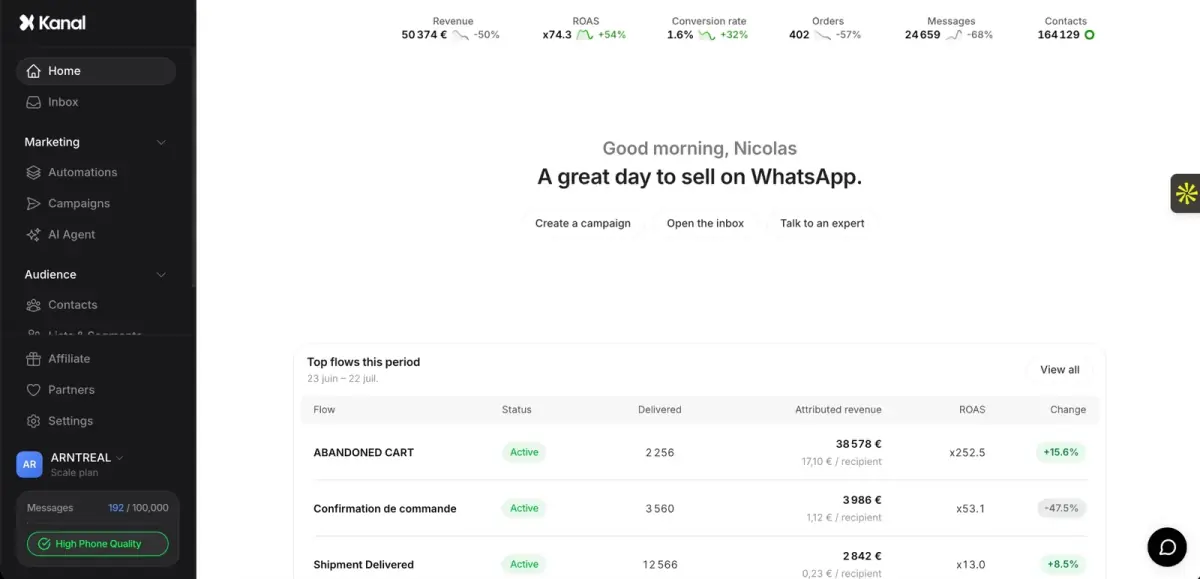
- brands
- 500+
- to set up
- 5 min
- open rate on WhatsApp
- +90%
Nicolas helps e-commerce brands grow revenue with WhatsApp marketing. With deep expertise in Shopify ecosystems and conversational commerce, he shares proven strategies for abandoned cart recovery, broadcast campaigns, and AI-powered customer engagement.