WhatsApp Business Catalog for Shopify: Setup Guide (2026)
How the WhatsApp Business catalog works, how to fill it from Shopify through a Meta catalog, product messages, carts and payments, from Meta's own docs.
 Nicolas ProvostMay 12, 2026 · 13 min read
Summarize this article with an AI
 ChatGPT
 Claude
Table of contents (18)
Key takeaways
- The WhatsApp Business catalog shows products on the business profile and in chats; each item needs a unique title, at least one image and a country of origin.
- A Shopify store fills it without retyping products by syncing Shopify to a Meta catalog with the Facebook and Instagram sales channel, then connecting that catalog to WhatsApp.
- Payments inside WhatsApp are documented by Meta for India and Brazil only; elsewhere the business sends a checkout link or agrees on payment in the chat.
WhatsApp is where many shoppers already talk to the businesses they buy from. Meta said in July 2023 that its WhatsApp Business app had 200 million users, and the catalog is how those businesses show their products inside the chat. For a Shopify merchant, the question is practical: how do you get your products into it without typing them twice, and what can you actually do with it?
This guide covers what the WhatsApp Business catalog is, the two ways to fill it (by hand in the app, or from Shopify through a Meta catalog), the product messages and cart available on the WhatsApp Business Platform, how payment works, and where a WhatsApp app for Shopify such as Kanal fits. Every rule quoted comes from WhatsApp's, Meta's or Shopify's own documentation, read on October 24, 2026.
What is the WhatsApp Business catalog?
The WhatsApp Business catalog is a showcase of products or services attached to a business's WhatsApp profile. According to WhatsApp's Help Center, each item needs a name, at least one image and its country of origin, with optional details: a price, a sale price, a description, a website link and a product code. The ability to add prices is only available in certain countries.
Customers open the catalog from your profile or from the chat, browse, share items with friends, and add products to a cart. A cart is sent to you as an order message, and you then agree on payment and delivery with the customer.
Two parts matter:
- Catalog: the list of products (name, images, price, description, link).
- Cart: what the customer fills while browsing, then sends to you as an order.
The catalog itself sits in one of two places. Either you create it in the WhatsApp Business app, item by item, or it is a Meta catalog in Commerce Manager, the same type of catalog used by Facebook and Instagram shops, which you connect to WhatsApp. For Instagram, see how to connect Shopify to Instagram.
Setup in the WhatsApp Business app (manual)
The manual path suits a small range that rarely changes. Following the Help Center:
- Open the catalog from the Tools tab (Catalog), then tap Add new item.
- Add up to 10 images or videos of the product.
- Enter the product name and select its country of origin.
- Add the optional details: price, sale price, description, website link (your Shopify product page) and product code.
- Save the item.
Every image and video is reviewed to confirm that the item meets WhatsApp's policies, and an item only becomes visible to customers once approved. A rejected item shows a red exclamation mark, and you can request another review from it.
Once you have several items, group them into collections so customers find them faster. You can share a link to a single item or to the whole catalog in a chat, in your status or anywhere else; a collection cannot be shared as a single link.
The limit of this path is upkeep: every price change, new variant or sold-out product has to be updated by hand in WhatsApp, on top of Shopify.
Setup from Shopify, through a Meta catalog
This is the path that avoids retyping your products. It has two steps, both run by Meta's and Shopify's own tools.
Step 1: sync Shopify to a Meta catalog. Shopify's Facebook and Instagram by Meta sales channel syncs your products to a catalog on Facebook and Instagram, and Shopify states that the channel is free to use with all Shopify plans, subject to store eligibility (Shopify Help Center, read on October 24, 2026).
Step 2: connect that Meta catalog to WhatsApp. WhatsApp's Help Center describes the steps for the WhatsApp Business app (About connected catalogs):
- Make sure the Facebook Page associated with your Meta catalog is linked to your WhatsApp Business account.
- In the WhatsApp Business app, tap Tools, then Catalog.
- Open Catalog settings and tap Connect catalog, then Confirm.
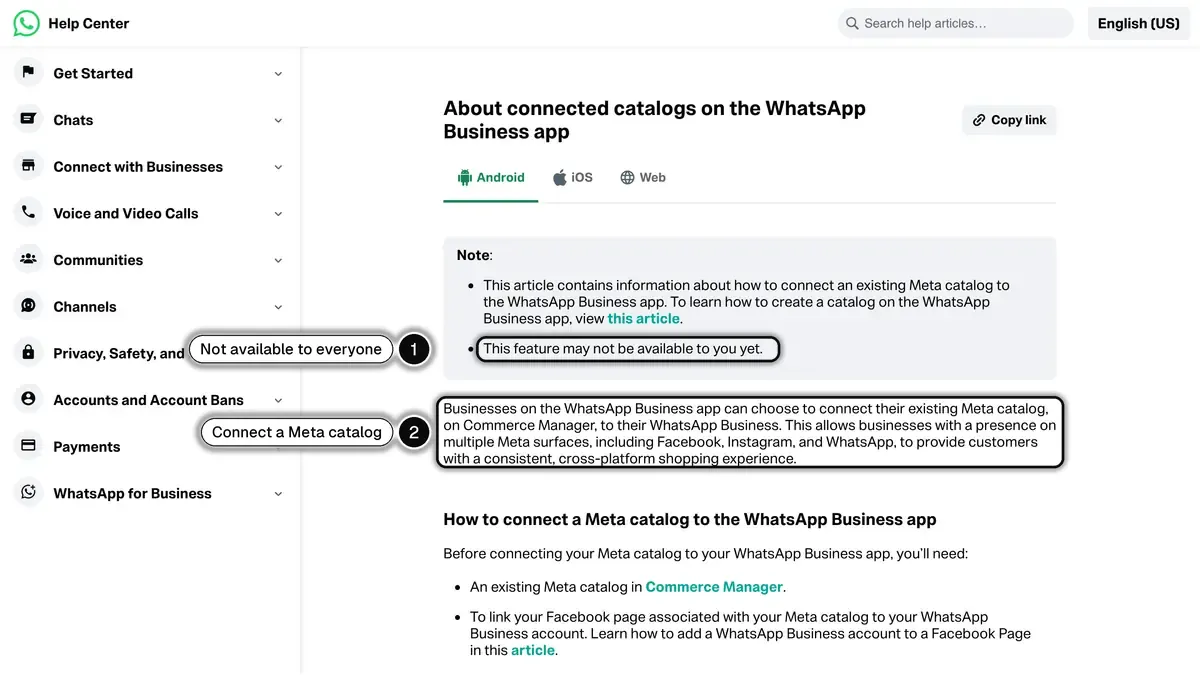
Source: WhatsApp Help Center, About connected catalogs on the WhatsApp Business app, read on October 24, 2026.
Three points from the same page are worth knowing before you switch. Connecting a Meta catalog archives the catalog you had built in the app, which customers then no longer see. A connected catalog cannot be edited from the WhatsApp Business app: businesses whose catalog is hosted on a third-party platform connected to Commerce Manager, such as Shopify, update it there. And updates appear in the app within 24 hours. The feature may not be available to every account yet.
The catalog on the WhatsApp Business Platform (API)
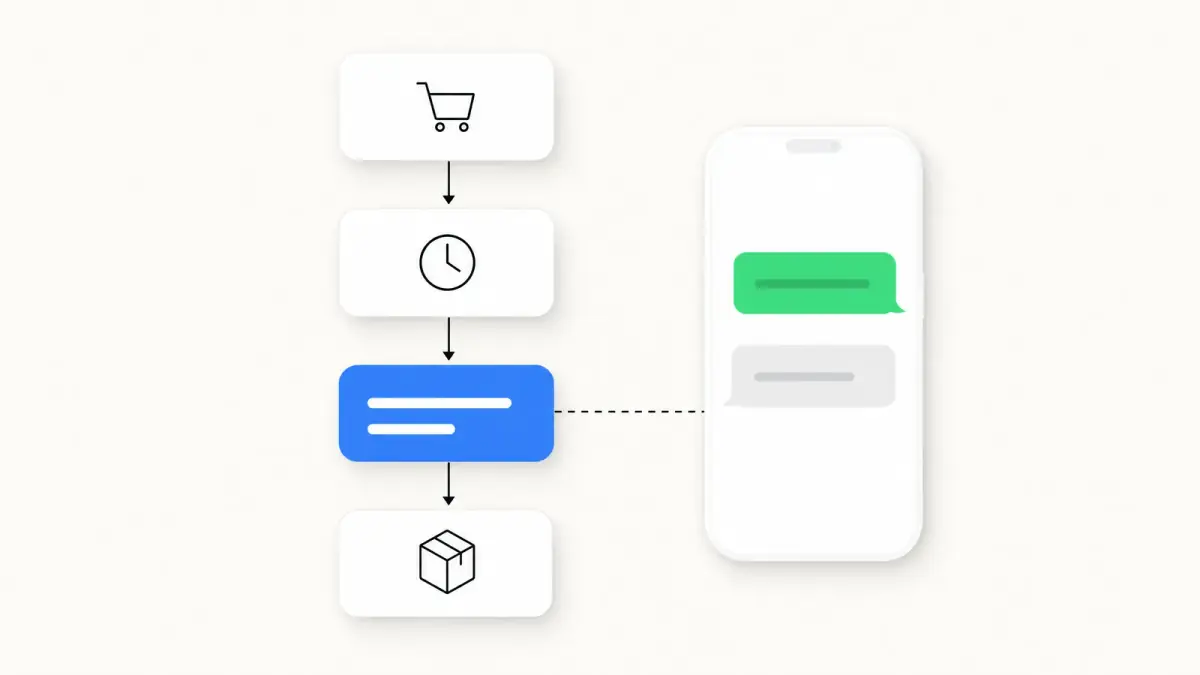
When a store uses WhatsApp through the API, the catalog works the same way but is used by software. Meta's catalogs overview describes four stages: you upload your inventory to Meta through the Commerce API or Commerce Manager, you set commerce settings for your business phone number (cart on or off, catalog visible or not), you share products in messages, and you receive the customers' questions and orders as webhook notifications.
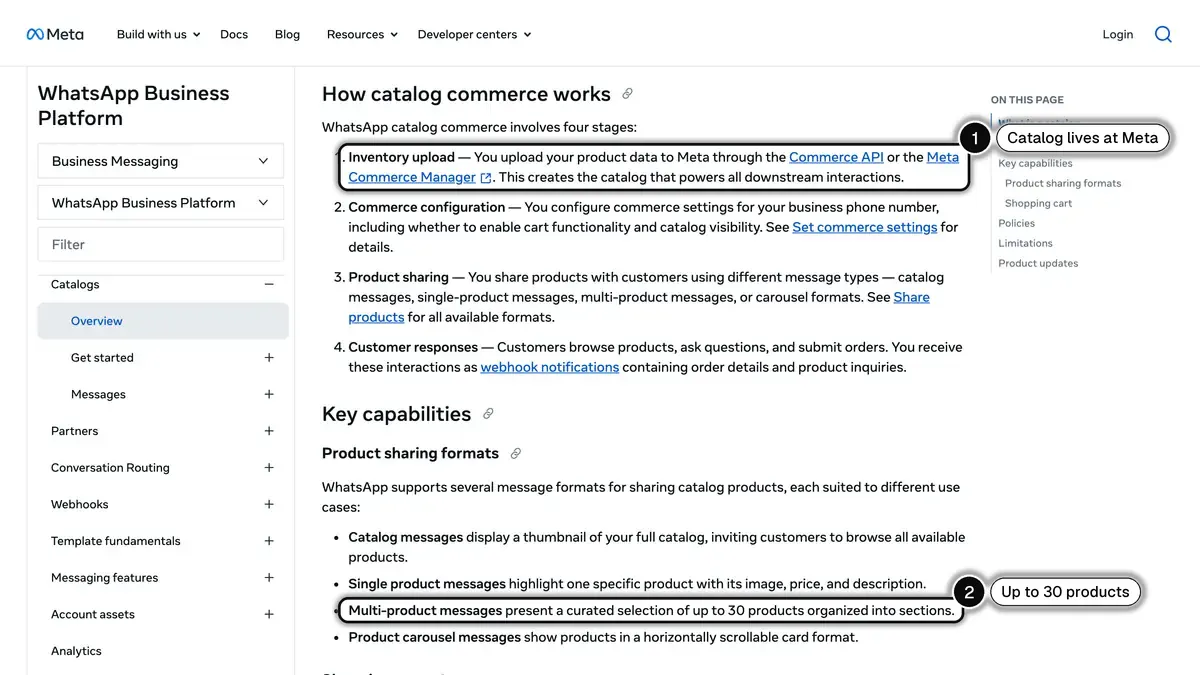
Source: Meta for Developers, WhatsApp catalogs overview, read on October 24, 2026.
A few rules from Meta's documentation shape what a store can do:
- One catalog per WhatsApp account. You can only upload one catalog per WhatsApp account hierarchy, and it serves every phone number in it. A business that already has a Meta catalog uses that one and connects it in WhatsApp Manager (Upload inventory to Meta).
- Four ways to show products. A catalog message shows a thumbnail of the whole catalog, a single-product message highlights one product, a multi-product message presents up to 30 products organized into sections, and a product carousel shows products as cards that scroll sideways. Catalog and multi-product messages also exist as templates, for writing to customers outside the 24-hour customer service window.
- The cart. It is on by default. A customer can add up to 99 units of each item, the cart stays in the chat until it is sent, and a sent cart can no longer be edited. You cannot send a cart to a customer.
- Stock changes. When a product becomes unavailable in the catalog, it is removed from carts that contain it, and product messages show it as unavailable.
In the WhatsApp Business app, the equivalent of the multi-product message is a list: when chatting with customers, businesses can share lists of up to 30 items from their catalog, according to WhatsApp's Help Center page on shopping while chatting with businesses.
Catalog or product link: when to use each
Both get a product in front of a customer; they do not suit the same moments.
| Use case | Link to the product page | Catalog or multi-product message |
|---|---|---|
| Customer asks "do you have it in blue?" | One link answers it | More than needed |
| Customer asks "what do you have under 50 euros?" | Several links in a row | A curated selection the customer can browse |
| Reminder about a cart left at checkout | The link to the customer's own checkout | Not suited: the cart is the customer's |
| Back-in-stock alert | The link to the product, ready to buy | Not needed |
| Seasonal selection sent to a segment | A short list of links, or a carousel template | A catalog or multi-product template |
A link sends the customer to your Shopify store, where the checkout, discounts and stock rules already work. A catalog keeps browsing inside WhatsApp but ends in an order message that you still have to turn into a payment.
How payment works
A WhatsApp cart is an order request, not a payment. When the business receives an order, WhatsApp's Help Center says it will reach out to the customer to discuss payment options. For a Shopify store, the simple answer is to send a link to a checkout or a draft order with the same items.
Payments inside WhatsApp exist on the WhatsApp Business Platform in two countries only. Meta documents a Payments API for India, which accepts payments through UPI apps and other methods such as cards, NetBanking and wallets, and a Payments API for Brazil, which offers Pix codes, payment links, boleto and one-click card payments (both read on October 24, 2026). In both cases the business sends an order details message and receives payment status updates.
What the catalog costs
Meta's pricing page charges for delivered messages, by category and by the recipient's country, and lists no charge for the catalog itself. A catalog or multi-product template sent to customers outside the 24-hour window is charged as a template message of its category. A product message you send in reply, inside the window, is a service message: since October 1, 2026, Meta gives each business phone number 1,000 free service messages per month and charges from the 1,001st. Our WhatsApp Business pricing guide has the current rates by country.
Best practices for product images, titles and descriptions
These keep a catalog easy to browse on a phone:
- Images: show the product alone in the first image, on a plain background, and keep the same crop and lighting across the range. Lifestyle shots come after.
- Titles: start with the product type, then the model, then what sets it apart. "Floral midi dress, navy, organic cotton" beats "Beautiful summer dress perfect gift".
- Descriptions: put the key information in the first line, then the specs (size, material, care).
- Prices: when prices are available in your country, always show one, so customers can shortlist without asking.
- One source of truth: with a connected catalog, change products in Shopify only. WhatsApp's Help Center asks businesses whose catalog comes from a third-party platform to update it there.
Common catalog mistakes
Listing prohibited goods. Items are reviewed before they appear, and the WhatsApp Business Messaging Policy says that a business that uses catalogs to sell goods prohibited by the Meta Commerce Policy may be prohibited from using some or all of WhatsApp for Business. Check your range before you connect a catalog.
Running two catalogs that drift apart. An app catalog typed by hand and a Shopify store edited every day soon disagree on prices and stock. Connect the Meta catalog synced from Shopify instead, so customers see what your store sells.
Forgetting the order after the cart. A cart arrives as a message. Unless you turn it into a Shopify checkout or order, it is not in your stock, your fulfilment or your reporting. Decide who handles carts and how fast, before you promote the catalog.
Expecting in-chat payment. Outside India and Brazil, there is no payment inside WhatsApp. Tell customers in your greeting how they will pay: by a secure checkout link from your store.
Where Kanal fits, and where it does not
Kanal is a WhatsApp marketing app for Shopify stores, built on the WhatsApp Business Platform. To be clear about the catalog: Kanal does not use the Meta catalog, does not sync your products to WhatsApp and does not send catalog or multi-product messages. If you want in-chat browsing, the setup above is done in Meta's and Shopify's tools.
What Kanal does is put your Shopify products in front of customers through messages with links to your store:
- Campaigns with product images and buttons to the product pages, sent to your opted-in contacts or, from the Scale plan, to segments built on order history (number of orders, orders over a period). On the Scale plan, a carousel template also shows several products as cards, each with its own button.
- Abandoned cart recovery, with the customer's own checkout link, so the reminder ends in Shopify's checkout.
- Back-in-stock alerts sent to the customers who subscribed on the product page.
- An AI chatbot that answers product questions and recommends items from your Shopify store.
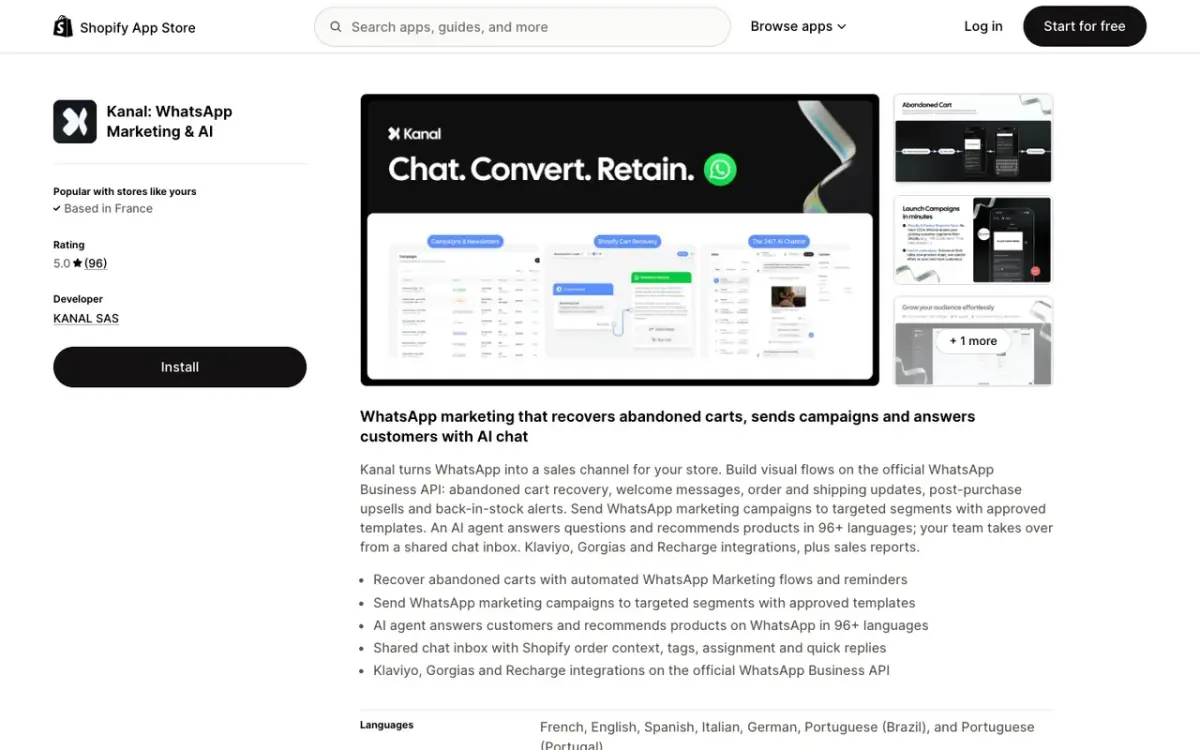
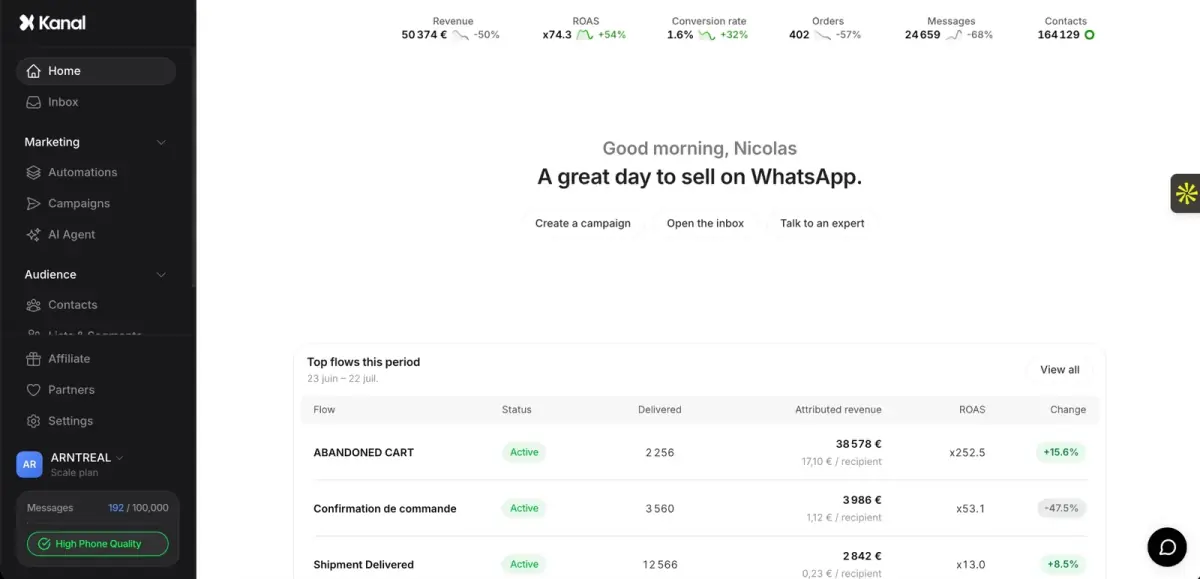
To see how these messages work on your own store, book a demo or read how the Kanal Shopify integration connects your store to WhatsApp.
FAQ
What is the WhatsApp Business catalog?
A showcase of products or services attached to a business's WhatsApp profile. Customers browse items, share them and add products to a cart that they send to the business as an order message. A business creates it in the WhatsApp Business app, or connects an existing Meta catalog from Commerce Manager.
Can I sync my Shopify products with the WhatsApp catalog?
Yes, through Meta. Shopify's Facebook and Instagram by Meta sales channel syncs your products to a Meta catalog, which you then connect to the WhatsApp Business app or, on the API, to your WhatsApp account in WhatsApp Manager. Updates appear in the app within 24 hours.
How many products can I show in one WhatsApp message?
Up to 30 products, organized into sections, in a multi-product message on the WhatsApp Business Platform. In the WhatsApp Business app, lists shared in a chat hold up to 30 items from your catalog.
Do I need WhatsApp Pay to sell through a catalog?
No. The customer sends a cart as an order message and you arrange payment, for example with a Shopify checkout link. Meta documents in-chat payments on the WhatsApp Business Platform for India and Brazil only.
Why was a product rejected from my WhatsApp catalog?
Items are reviewed against WhatsApp's policies and stay hidden until approved. Prohibited goods are the usual cause. In the app, request another review from the rejected item; for a Meta catalog, appeal in Commerce Manager.
Does Kanal sync my Shopify catalog to WhatsApp?
No. Kanal does not use the Meta catalog. It sends WhatsApp messages with links to your Shopify products and checkouts: campaigns, abandoned cart reminders, back-in-stock alerts and order updates, plus an AI chatbot that recommends products from your store.
Resources
See Kanal on your own store
- Your campaigns and cart reminders on WhatsApp, starting from your own store
- Post-purchase offers, back-in-stock alerts, then the AI agent that advises your customers
- You leave with the plan that fits and its price
From €89/month
- brands
- 500+
- to set up
- 5 min
- open rate on WhatsApp
- +90%
Nicolas helps e-commerce brands grow revenue with WhatsApp marketing. With deep expertise in Shopify ecosystems and conversational commerce, he shares proven strategies for abandoned cart recovery, broadcast campaigns, and AI-powered customer engagement.